This guide explains how to generate a strong password using the
dicendo Android application.
A single die, a set of dice, or a shuffled deck of playing cards can be used. Standard dice are commonly available in sets of 12 or 36.
Note: The example passwords shown below are generated using
the 85-character alphabet.
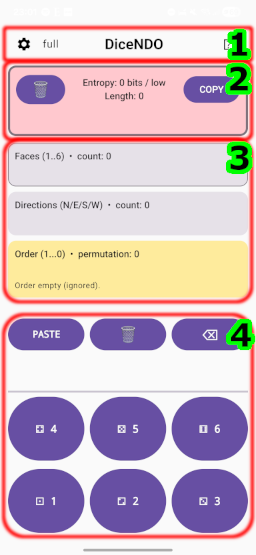
N/E/S/W), and the
permutation representing the order of dice, or the order of a shuffled active card deck. The
panel validates the entered data and ensures that all required components are provided
before password generation.

The status bar provides access to configuration options and help:
full default 85-character alphabet,full+ 92-character, extending full with additional
uncommon symbols such as space, semicolon, and special brackets,simple 67-character, excluding visually ambiguous symbols,hand 43-character optimized for handwritten transcription,hex hexadecimal number,dec decimal number,nums a sequence of numbers within a user-defined range.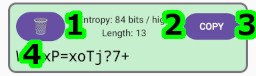
The password panel displays the generated password and provides controls related to its management. It contains:
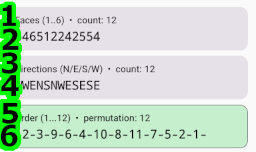
The input panel displays and manages physical-randomness data required for password generation. In dice mode, it contains:
green indicates that it forms a complete consecutive sequence
starting from 1,
yellow indicates that the sequence is incomplete or not continuous,
red indicates the presence of duplicated numbers.In cards mode, the input panel shows the entered card sequence, its numeric representation, and the number of unique cards already entered from the active deck. The password is generated only after the complete active deck has been entered. If a card is disabled in Options, it is not accepted by the input panel; the remaining active cards are renumbered internally so that the permutation remains continuous.
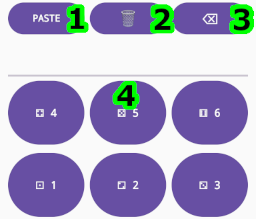
The faces keyboard panel provides all controls required for entering face values. It includes:
1–6),
ensuring consistent and error-resistant data entry.
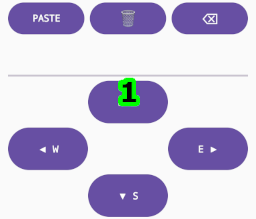
The directions keyboard panel, in addition to the standard control buttons (Paste, Clear, and
Backspace), provides a dedicated keyboard for entering direction data. It includes only the
valid directional inputs (N/E/S/W), ensuring
accurate and context-specific entry of orientation values.

The order keyboard panel, in addition to the standard control buttons (Paste, Clear, and Backspace), provides a numeric keyboard for entering the permutation sequence. It also includes a key that allows switching to an alternative keyboard layout.
The primary keyboard is designed for 12 dice. Once a specific number is entered, its corresponding key becomes disabled, helping prevent duplicate entries and reducing input errors. The alternative keyboard layout enables entry of a larger range of numbers, allowing permutations longer than 12 elements when required.
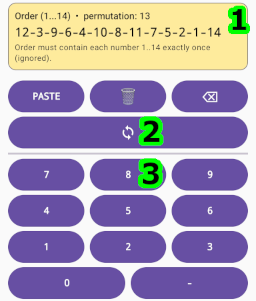
The alternative order keyboard panel is intended for entering permutations longer than the standard 12-dice configuration. It provides an extended numeric layout that allows the user to input a larger range of consecutive numbers. Unlike the primary 12-key layout, which disables keys once used, the alternative keyboard supports flexible numeric entry suitable for higher cardinalities. The permutation string is still validated by the input panel, ensuring correctness, continuity, and the absence of duplicates.
The cards keyboard panel is used for entering the order of a shuffled active card deck. It
contains the standard control buttons (Paste, Clear, and Backspace) and a table of card keys
arranged by rank rows (A at the top through 2 at the bottom) and suit columns
(♣, ♦, ♥, ♠). Once a card is entered, its
key becomes disabled to prevent duplicate entries. Cards disabled in Options are disabled here
as well. If optional extra cards are enabled, they appear in the additional cards column.
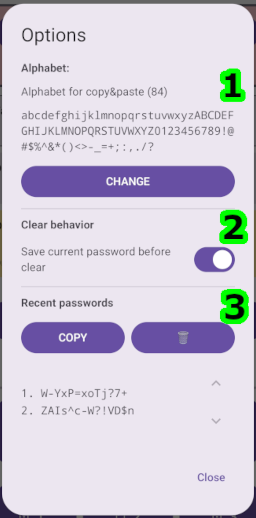
The options dialog groups alphabet and password-history related settings in one place. It contains:
CLEAR in the password panel first adds the currently displayed password to the
recent passwords list (up to 254 entries).
1 to 32
characters, with default value 12. This affects only saved recent passwords;
it does not change the password generated or copied from the password panel.
COPY button) and removes all saved recent passwords
(CLEAR button).
Security note: Recent passwords are stored only locally on device. They are persisted in
an encrypted file (EncryptedFile, AES/GCM) with key material managed by Android
Keystore. This is not a remote/cloud database. Clipboard contents may still be accessible to
other apps on some Android versions. Clear the clipboard and disable list saving when necessary.