
- tap the face panel and enter face values (1–6):
551421565161262454131223114221644461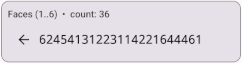
ZAIs^c-W?!VD$n

This quick start guide shows how to generate your first password using
dicendo. The examples below demonstrate three common approaches:
(1) using only dice face values, (2) using faces together with directions and
the order of numbered dice to obtain more entropy from fewer rolls, and
(3) generating a password from the order of a shuffled deck of cards.
Simply roll the dice or shuffle the cards, enter the observed values into
the corresponding panels in the application, and dicendo will
deterministically convert the result into a strong random password.
Steps:
551421565161262454131223114221644461
ZAIs^c-W?!VD$n
Steps:
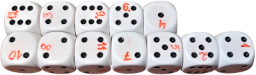
Each die should be permanently labeled with its own unique number
from 1 to 12.
Write the number on every face of the die, preferably
using small digits placed consistently in the same corner. The placement
should make it possible to distinguish the orientation
(N/E/S/W)
of the die. See the example image below.
646512242554

WWENSNWESESE

12-3-9-6-4-10-8-11-7-5-2-1

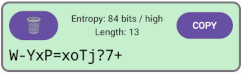
W-YxP=xoTj?7+
Standard dice are commonly sold in sets of 12 or 36. However, for simplified modes (for example generating passwords using only face values or only directions), it is perfectly acceptable to use a single die and roll it repeatedly.
Steps:
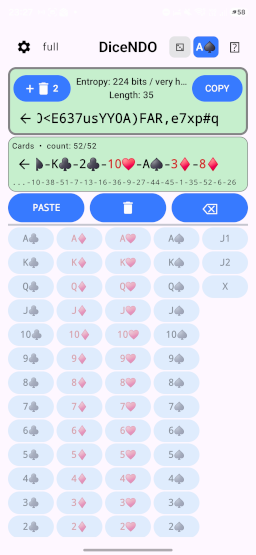
Q♥-J♥-2♠-6♥-2♦-10♣-J♣-9♠-A♣-7♦-J♠-K♦-9♣-9♦-7♠-K♠-7♣-8♣-3♠-5♥-Q♦-2♥-4♥-K♥-7♥-5♦-Q♣-10♦-4♠-9♥-6♦-6♣-3♣-6♠-A♦-8♠-4♦-J♦-A♥-3♥-5♣-5♠-10♠-4♣-8♥-Q♠-K♣-2♣-10♥-A♠-3♦-8♦
43-39-4-19-2-33-37-32-49-22-40-46-29-30-24-48-21-25-8-15-42-3-11-47-23-14-41-34-12-31-18-17-5-20-50-28-10-38-51-7-13-16-36-9-27-44-45-1-35-52-6-26
,=@$+!=pW(rx0<E637usYY0A)FAR,e7xp#q